
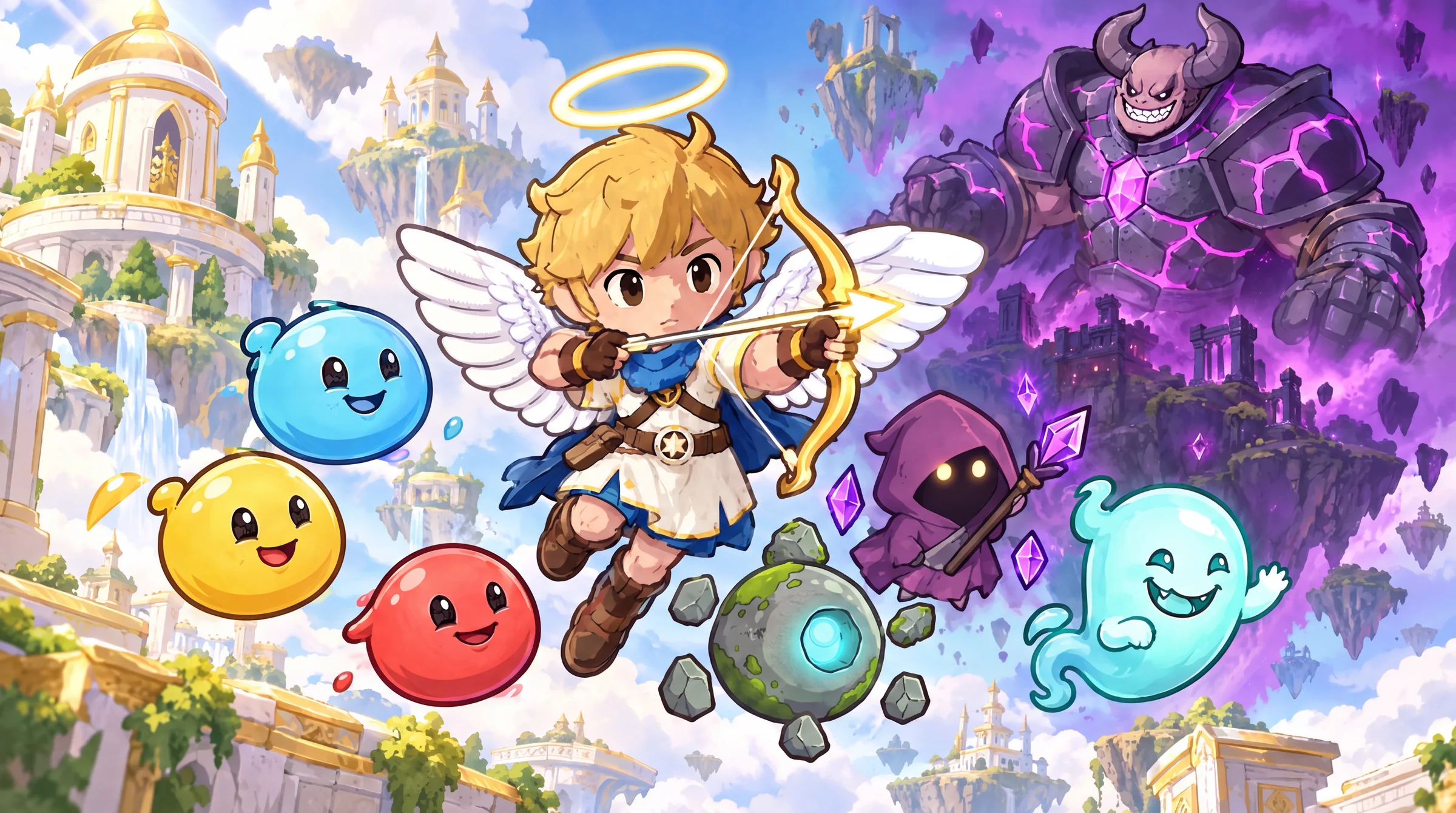
A good game interface helps you stay inside the world. You notice the next action, understand what changed, and get back to playing. In Divine Rush, that world is bright skies, small winged characters and an adventure led by Seraph. The interface should feel just as warm and expressive.
Over the past few weeks, I’ve been bringing its screens closer together: the skill paths, health bar, conversations, equipment and crafting menus. The work started with visual details, but the most useful changes came from asking a simpler question: what does the player need to understand at this moment?
That question has shaped both the look of the game and the structure underneath it. Here’s how the UI has evolved, and the decisions behind the current direction.
Giving the game one visual language
As Divine Rush grew, individual screens developed their own habits. A button could look right on one screen and feel unrelated on the next. Decorative details competed with labels. Some items looked generous on desktop but became tiny on a phone.
I started connecting those decisions through an atomic design library: small foundations that combine into controls, cards and complete screens.
Warm ivory gives text a calm surface. Deep blue outlines keep shapes readable. Sky colours connect the interface to the world, while gold brings attention to selected items and moments of confirmation. The illustrated navigation icons now share the same visual family as the skills and the game’s updated logo.
The library goes beyond colour swatches. It includes counters, objectives, item cards, rewards, navigation and dialogue. Each component needs to hold up with different content and different states. A beautiful equipment card still has work to do if its name wraps, its item is unavailable, or its action changes from Equip to Remove.
Consistency makes these moments easier to learn. Once a player understands one selected state or one primary action, that knowledge should help elsewhere.
Making six skills feel alive
The mastery paths became a place to explore a richer illustrated style. Gale Dash, Feather Step, Radiant Volley, Sunlance, Halo Burst and Aegis Bloom each have their own silhouette and colour, held together by a shared golden frame.
Their motion follows the artwork. Feather shapes open, wings flex, arrows release and a highlight travels around the border when a skill is pressed. The frame confirms the interaction while the movement inside it expresses the skill’s character.
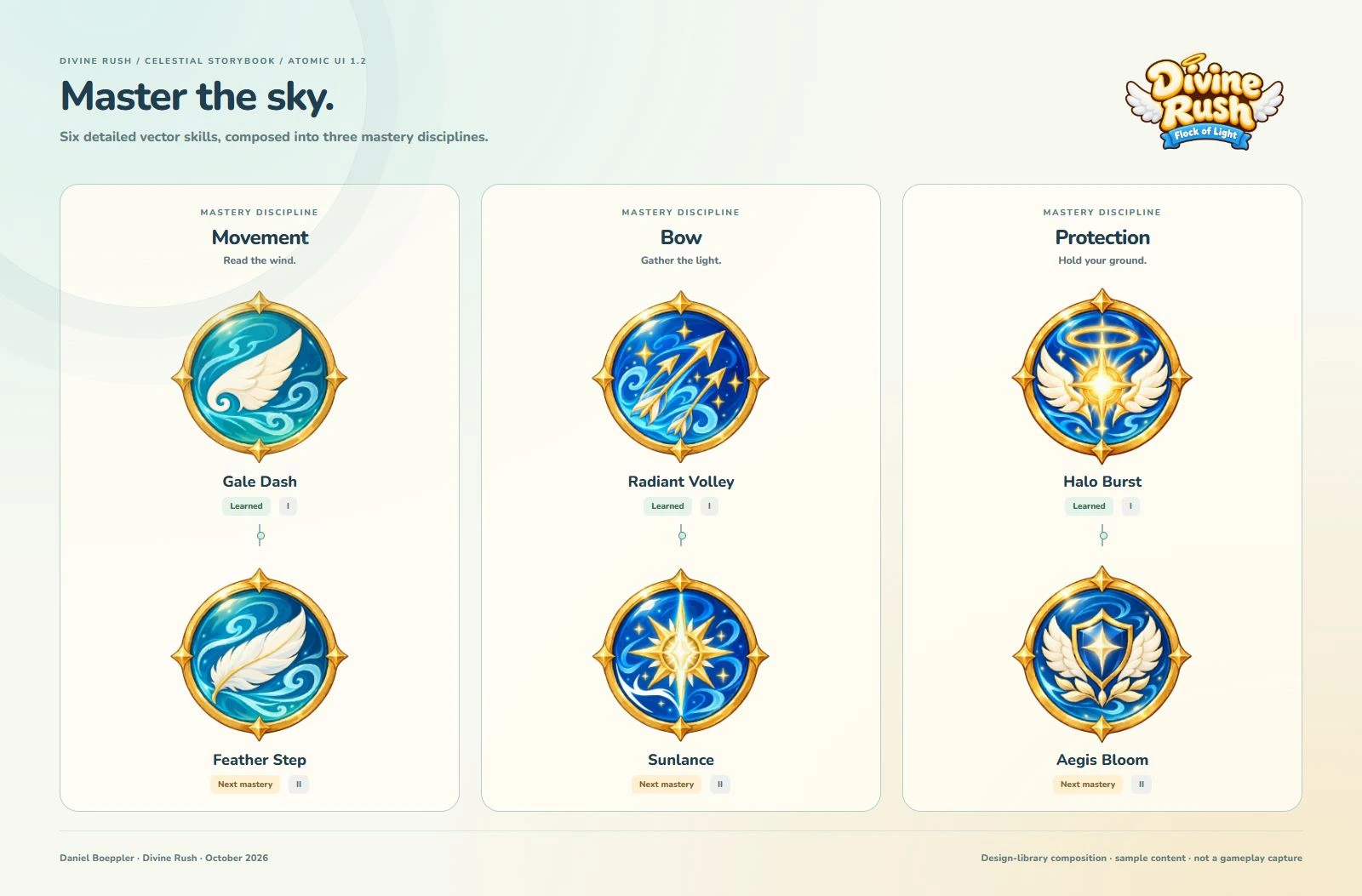
Finding the right amount of motion took iteration. Subtle movement could disappear at small sizes; stronger movement could make the page feel busy. The current previews keep their illustrations still until an interaction calls for animation, then settle again.
That balance matters to the experience. A selection should feel satisfying without demanding attention long after the player has made it. It also keeps the focus on the artwork rather than a screen full of competing effects.
Try the six animated skill previews.
A calmer, clearer health bar
The health heart went through a similar refinement. An early version had decorative wings and a more pronounced pulse. The latest version is a compact jewel heart with a continuous gold rim, soft reflections and a gentler heartbeat.
As health drops, the green jewel gradually becomes less saturated, moving through muted sage towards grey. The bar loses its fill at the same time, and a numeric value provides another way to read the change. Colour supports the information; it doesn’t have to carry it alone.
Removing the wings gave the heart a cleaner silhouette at HUD size. Reducing the pulse made the feedback feel less abrupt. The small shine around the rim remains, but it has a supporting role.
This has become a useful design principle for the project: keep the detail that adds meaning, then give it enough space to be seen.
Conversations that leave room for the world
Dialogue is one of the most visible changes. I wanted characters to feel present without turning every conversation into a large overlay.
The new layout places the speaking character above a short reading card. Their head, shoulders and wings can extend beyond the card, while the words sit on a quiet, opaque surface underneath. A small name tab connects the speaker to the line. Next and Skip remain visually modest, with enough room to tap them comfortably.
The speaker can appear on either side as the conversation changes. Seraph, Valka and Gorvok share the same frame, alongside the wider cast, so personality comes from the character rather than a completely different panel for each person.
The same family adapts to different moments. Story conversations have navigation controls. Brief flight comms use a smaller presentation that leaves steering available. Cinematic captions keep the reading surface without adding a second character over the scene.
Small enemies get a lighter touch: occasional little comments above them. “My robe is not a shield” gives a mage a bit of personality without asking the player to stop. Keeping these lines short and spaced apart is part of the design; a joke works better when it has room to land.
Explore the current dialogue and character previews.
Equipment, inventory and crafting in one place
The bag needed more than a new visual treatment. Picking an item, understanding it and equipping it should form a clear sequence.
The updated design brings three related activities into one menu:
- Equipment: browse weapons and armour, inspect a piece and equip it in its own slot.
- Inventory: find materials, food and collectibles without mixing them into the armour list.
- Crafting: choose a recipe, see its result and understand what is still needed.
Armour is separated into head, chest, hands, legs and feet. Choosing boots should affect the feet, rather than replace an entire outfit. Weapons have their own slot, and the equipped state stays visible while browsing.
On wider layouts, Seraph appears on the right so the result of an equipment choice is close to the decision. In crafting, that space belongs to the item or structure being built. The preview answers a practical question: what am I making with these materials?
Ingredient counts distinguish what is available from what is missing. A ready-to-craft filter helps narrow the list, while material-to-recipe links connect supplies to their uses. The inventory and crafting views now support the same journey instead of feeling like separate destinations.
Responsive design means changing the flow
Shrinking the desktop menu was not enough. When the screen became narrow, the item art and equipment details lost their usefulness.
The phone layout now gives browsing and inspection their own space. Players can scroll through readable item cards, open a detail view, then return to the list. Filters stay reachable without forcing every category into a cramped row. Equip and Keep Current appear early in the detail view, close to the information needed to choose.
This is the part of responsive game UI I find most interesting. The content stays consistent, but its arrangement can change to fit the task. Desktop has room for simultaneous comparison. A phone benefits from a clearer progression through the same decision.
The interactive equipment and crafting prototype uses sample inventory, so visitors can explore it without affecting a game save.
Bringing the pieces together
The biggest improvement is how these changes support each other. Skills, health, dialogue and menus now share a clearer visual language, while each has a distinct job. Rich illustrations give the world character. Quiet reading surfaces, predictable controls and restrained motion help the player use it.
The project is still evolving. The public component library includes working design previews, and implementation continues in the game. Device feedback remains essential, particularly for touch comfort, text size and how much information belongs on screen during flight.
For me, that is the value of building the design system alongside the game: every small adjustment can improve the next screen too.