Utility · Employee intranet

Hydro One

Complex information. A direct path forward.

The HydroNet employee intranet, organised around daily tools and applications, plus public bill, outage and project pages.
HydroNet intranet homepage
Role
UX/UI Designer
Scope
Intranet homepage, applications directory, team pages, public pages
Focus
Information hierarchy, readability, access
Scroll to explore
Mission

Make a busy intranet easier to move through.

HydroNet is where Hydro One employees start the day: tools like myHR and Storm Center, dozens of internal applications, team pages and company news all compete for the same homepage.

My contribution

I reorganised the intranet around daily tasks.

Homepage wireframes and the final layout, the applications directory, team pages, and public bill, outage and project pages for hydroone.com.

3Homepage wireframe directions
5 monthsProject length
2Audiences: employees and customers
2020–21Delivered

From zone map to final page.

The homepage was mapped by job first, wireframed in a few directions, then designed with the daily tools leading.

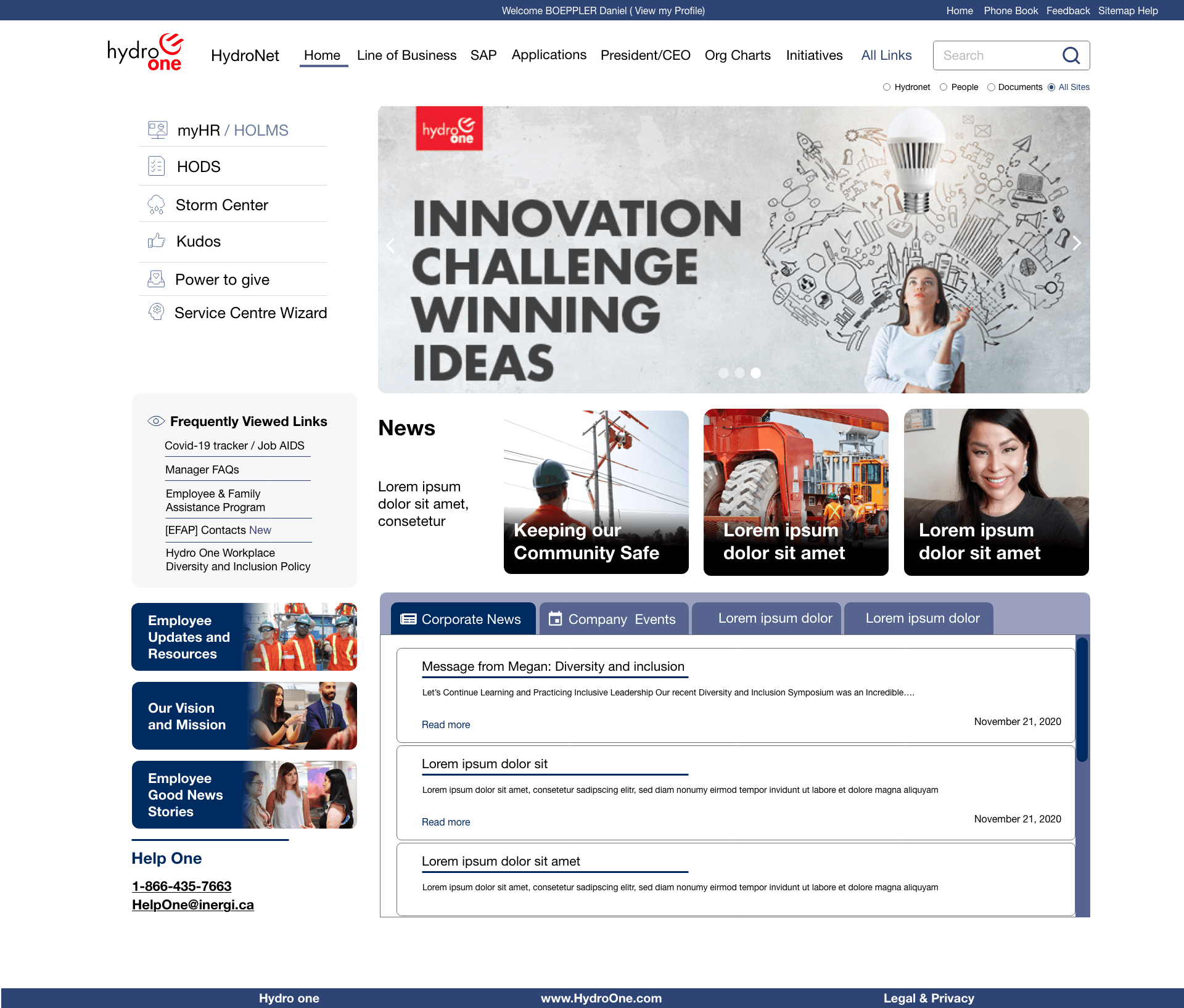
HydroNet intranet homepage: daily tools, frequently viewed links, a campaign banner, news cards and tabbed posts.
01 / Intranet homeDaily tools first, news second.

myHR, HODS, Storm Center and the other daily tools sit top left, beside the campaign banner and the news.
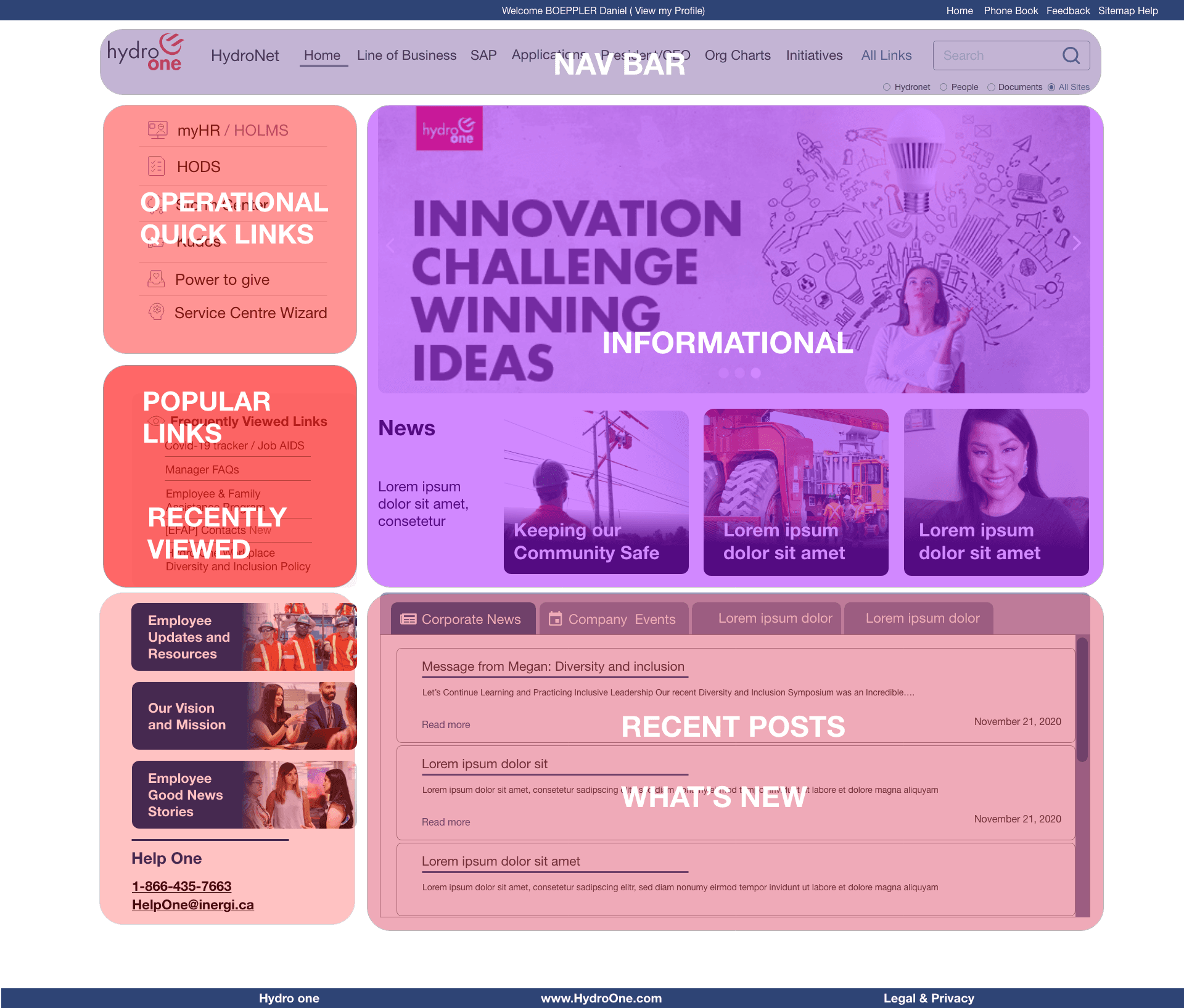
HydroNet homepage zone map: operational quick links, popular links, informational banner and recent posts.
02 / Zone mapEvery block has one job.

The homepage is split into operational quick links, popular links, information and recent posts before any visual design.
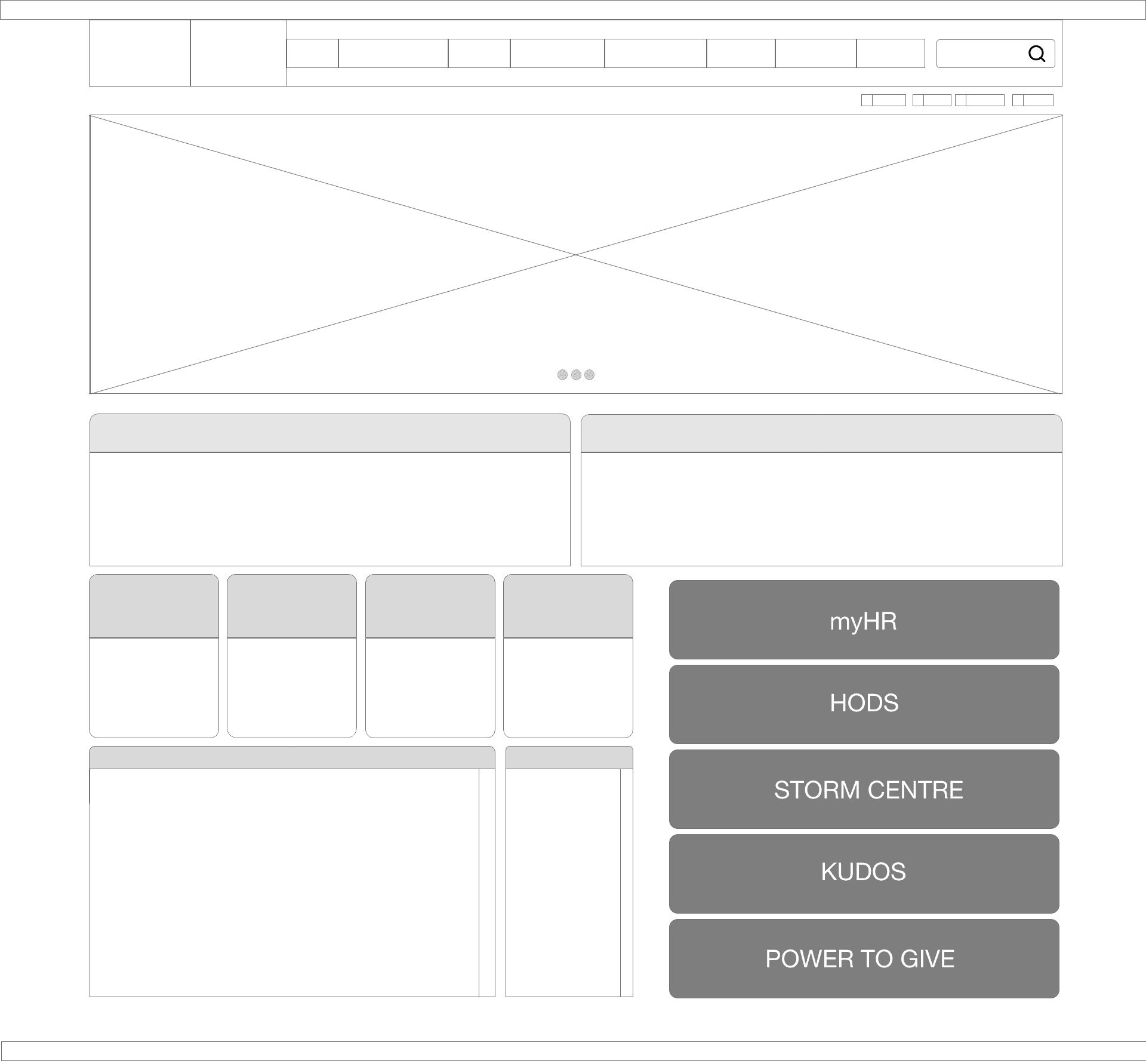
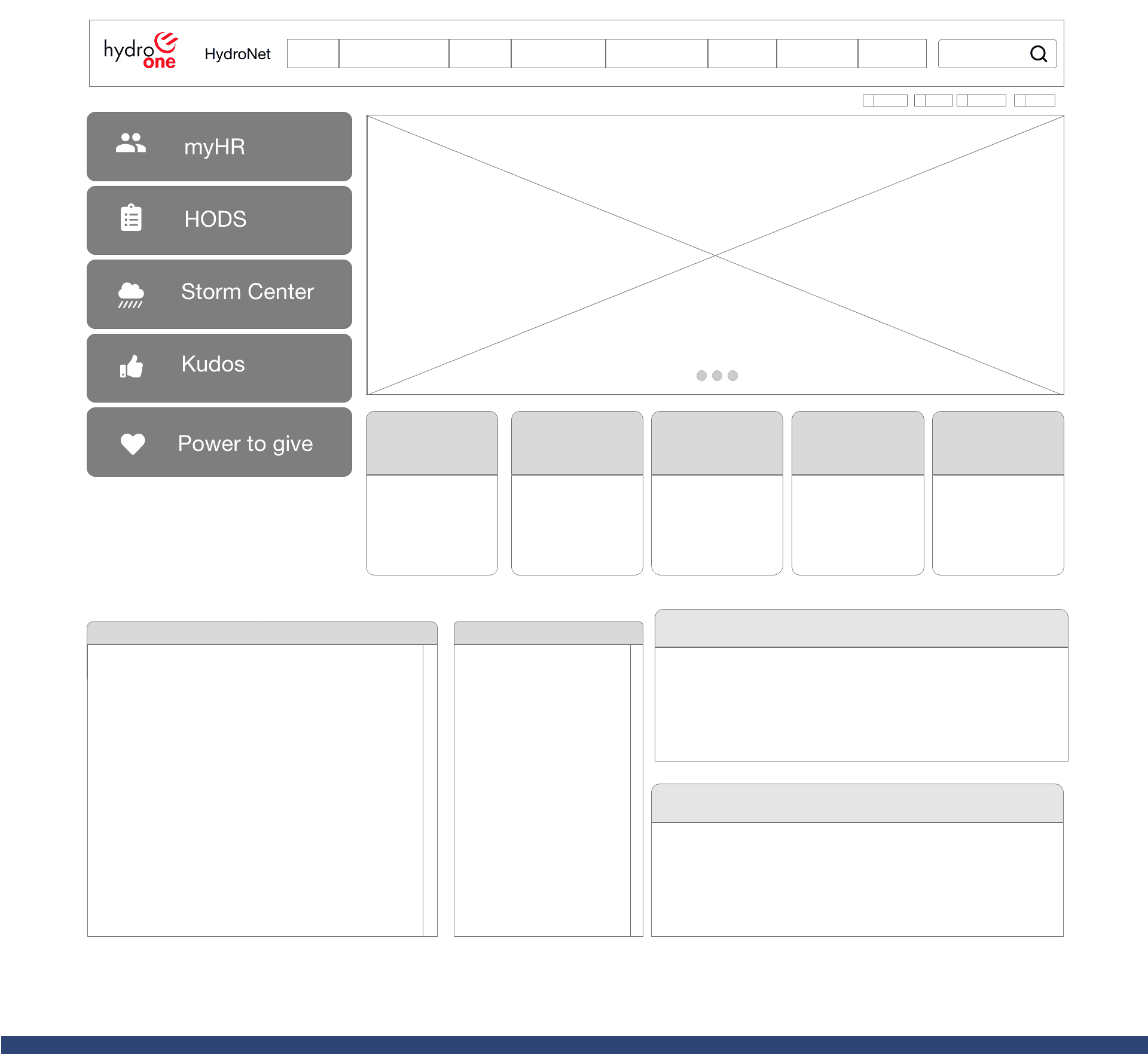
HydroNet homepage wireframe with myHR, HODS, Storm Centre, Kudos and Power to Give as large buttons.
03 / WireframeThe daily tools become big, plain buttons.

One wireframe direction puts five daily tools on the right as full-width buttons, above the fold.

Five zones, five employee questions.

Scroll the cards, or tap a marker on the screen.
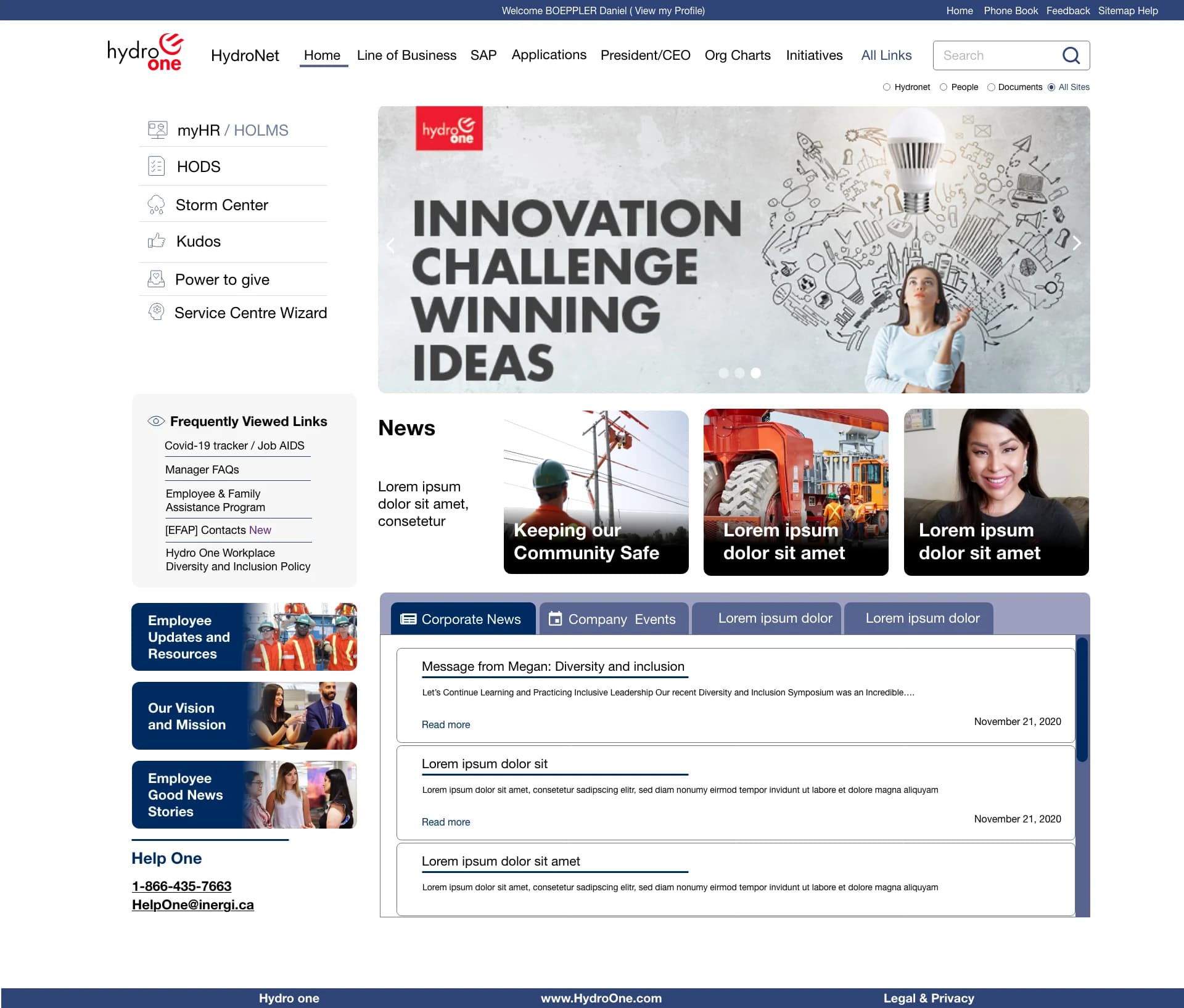
HydroNet intranet homepage: a top navigation row with search, six quick links on the left, a rotating banner with three news cards, a Frequently Viewed Links panel and a tabbed Corporate News feed.
HydroNetIntranet homepage, zone by zone
01 / 05

Seven sections and one search.

  1. Where is everything else?

    Seven sections and one search.

    Seven areas plus All Links in one row. Search narrows to HydroNet, People, Documents or All Sites.

    • Consistent navigation
    • Scoped search
  2. Where are my daily tools?

    Six tools, top left.

    myHR, HODS, Storm Center, Kudos, Power to give and Service Centre Wizard come first, each with an icon.

    • Task-first entry
    • Recognition over recall
  3. What do people open most?

    Frequent links in one panel.

    Five shortcuts share a grey panel; one carries a New tag.

    • Shortcuts for frequent tasks
    • Visual grouping
  4. What is happening at Hydro One?

    One campaign, then the news.

    A rotating banner sits above three photo cards under a News heading.

    • Visual hierarchy
    • Scannable cards
  5. What changed this week?

    Tabbed posts with dates.

    Corporate News and Company Events share one panel; each post has a title, a teaser, Read more and a date.

    • Progressive disclosure
    • Consistent cards

What an employee asks, and how HydroNet answers.

Pick a question. See the screen that answers it.
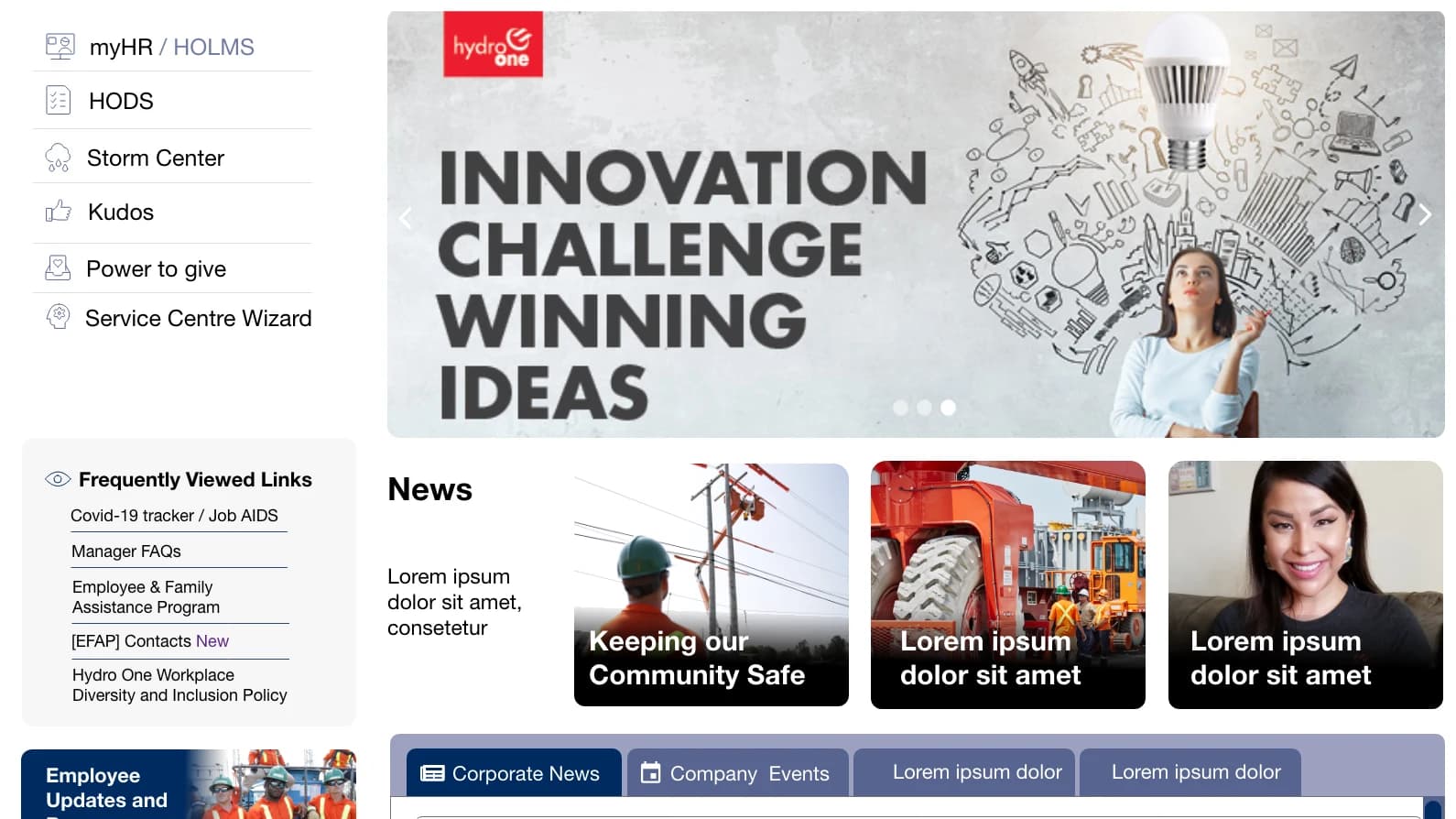
Daily tools pinned top left.
HydroNet homepage quick links for myHR, HODS, Storm Center, Kudos, Power to give and Service Centre Wizard beside the Innovation Challenge banner, with Frequently Viewed Links and News below.
Concepts · not shipped

Three I would design next. Try them.

    • myHRHuman Resources
    • IT Self-ServiceIT Support

    2 of 4 pinned.

    Let each employee pin their tools.

    Pin a tool
    1. myHR / HOLMS
    2. HODS
    3. Storm Center
    4. Kudos
    5. Service Centre Wizard

    A normal day: the usual order.

    Put Storm Center first during storms.

    Flip it
  • New on HydroNet? Your first links: , , and .

    HODS · Hydro One Document System

    Spell out the acronyms in place.

    Tap one

Team pages and wireframe directions.

The same blocks carry from a team page to the homepage wireframes, each with a clear label for what it holds.

Explore the interactive HydroNet library: tokens, components, and four intranet pages.
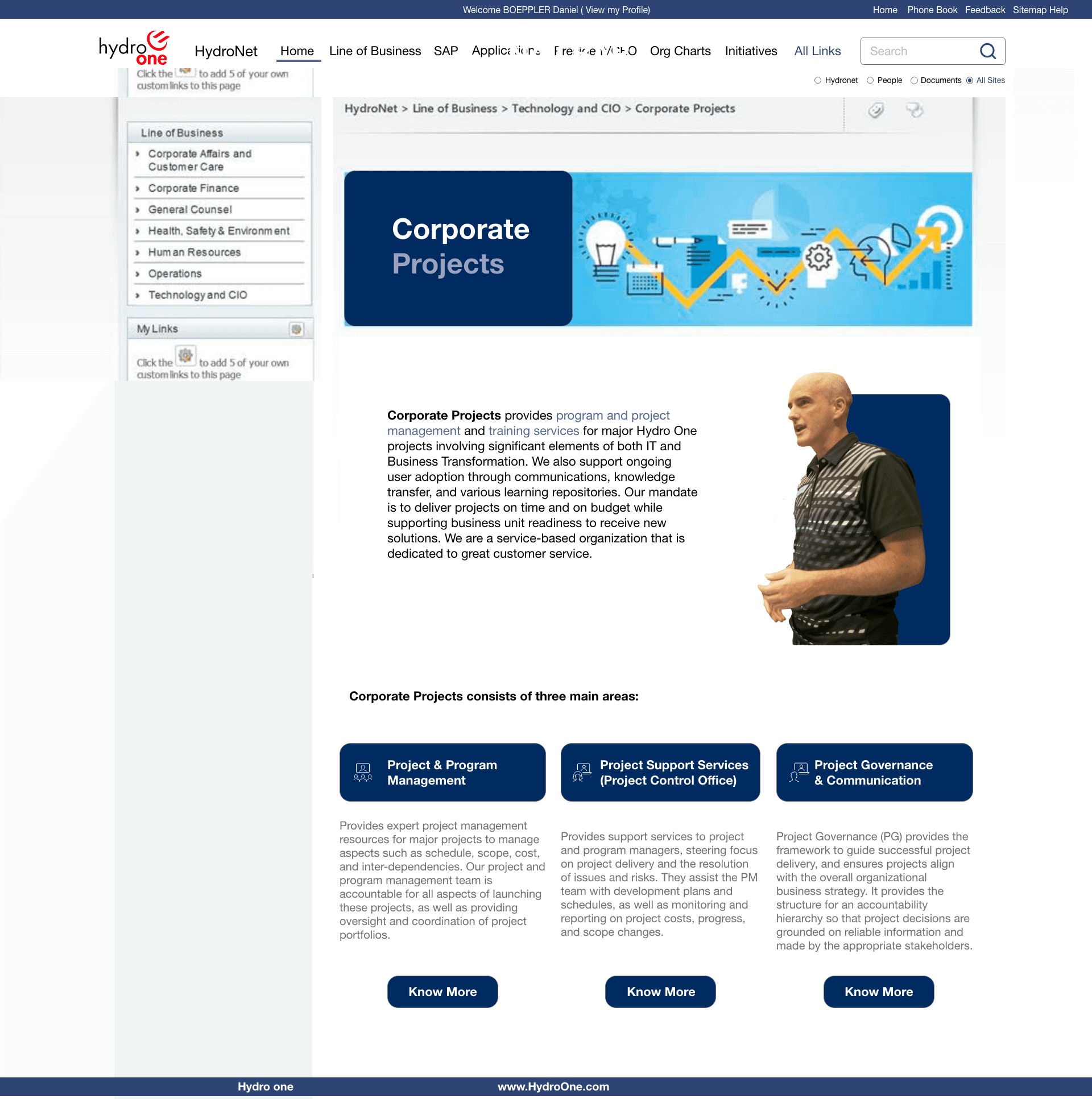
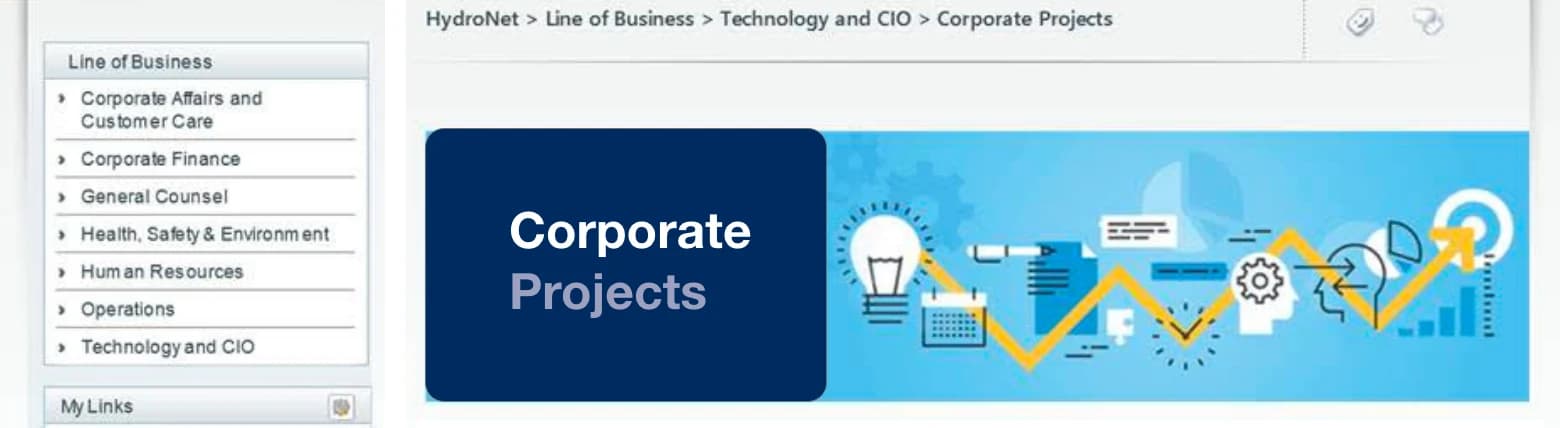
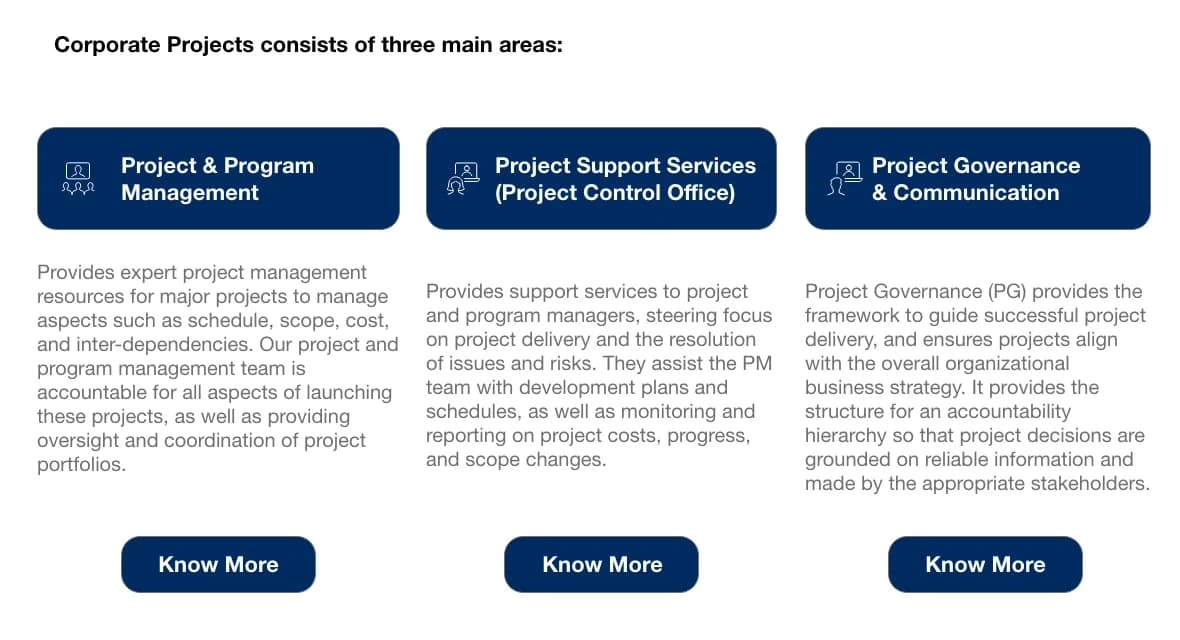
HydroNet Corporate Projects team page with a breadcrumb, line-of-business menu and three service areas.
Team pageA breadcrumb, a short intro, and three areas with Know More.
HydroNet homepage wireframe with the daily tools as a left column beside the banner.
Wireframe · left toolsTools in a left column, beside the banner.
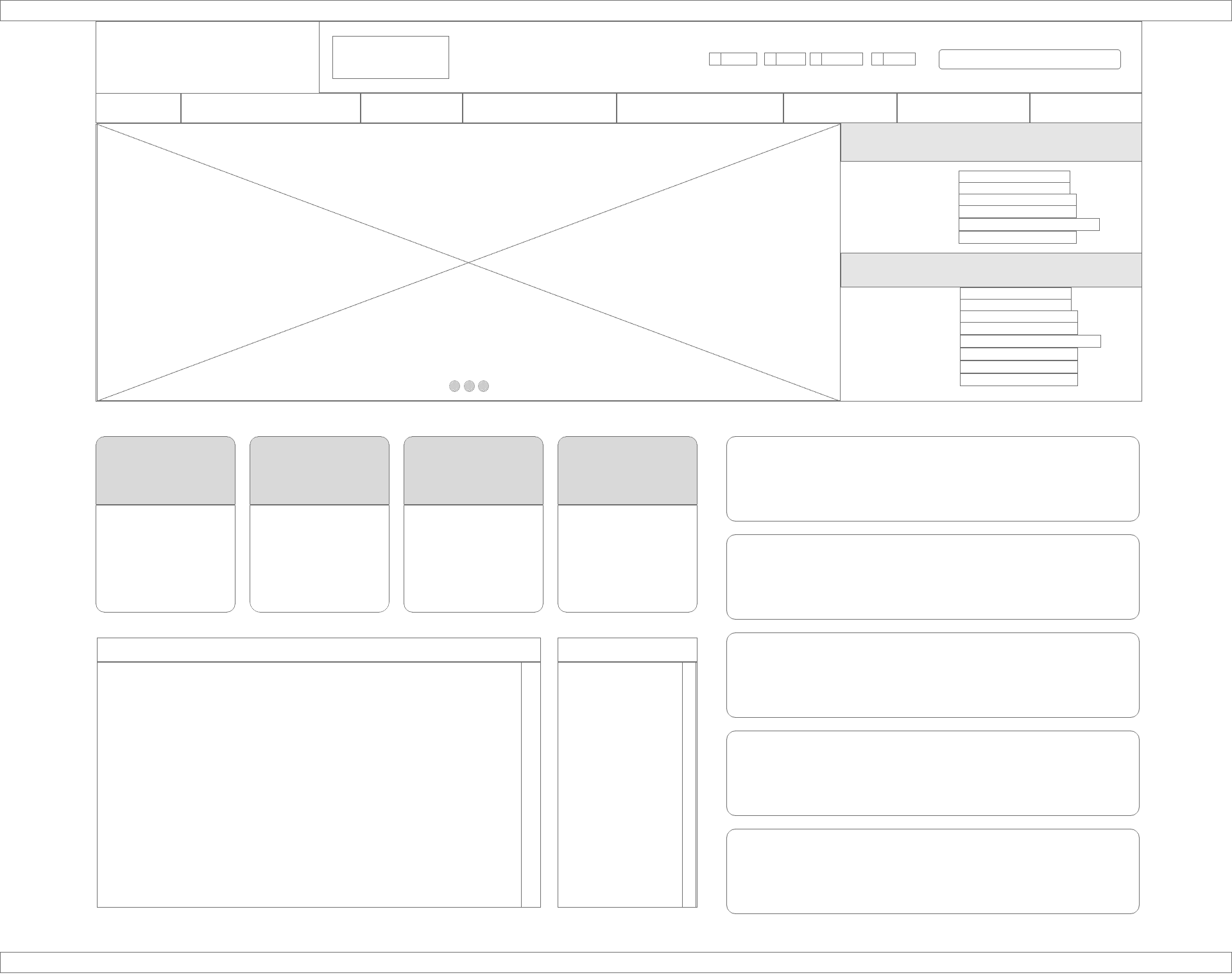
HydroNet homepage wireframe with a banner, a row of tiles and stacked panels.
Wireframe · tilesA banner, a row of tiles, then stacked panels.

Bill, outage and project pages for customers.

Beyond the intranet: a project page for the Chatham to Lakeshore Line and a mobile menu that leads with bill and outage tasks.
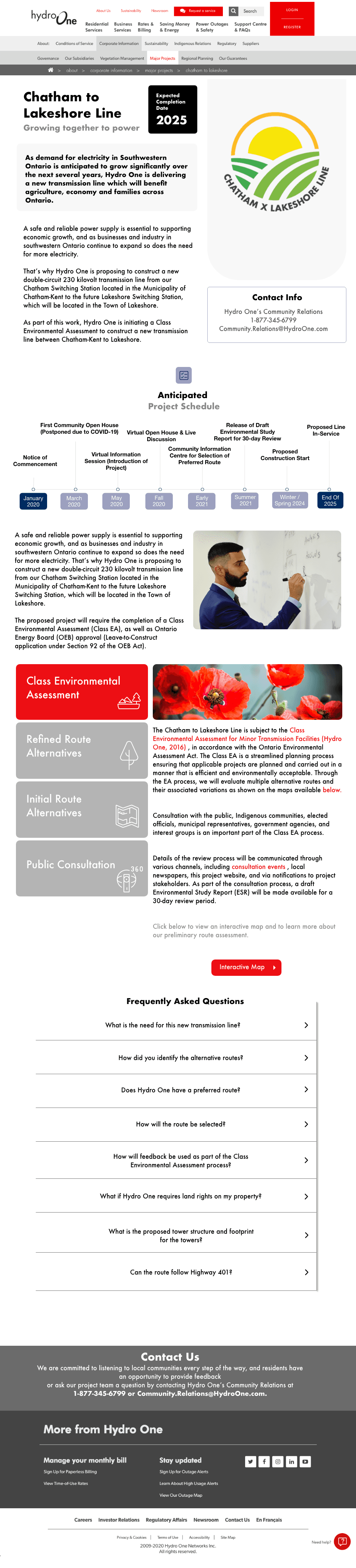
Public hydroone.com project page for the Chatham to Lakeshore Line, with an expected completion date and contact info.
Public · project pageTasks first, details below.
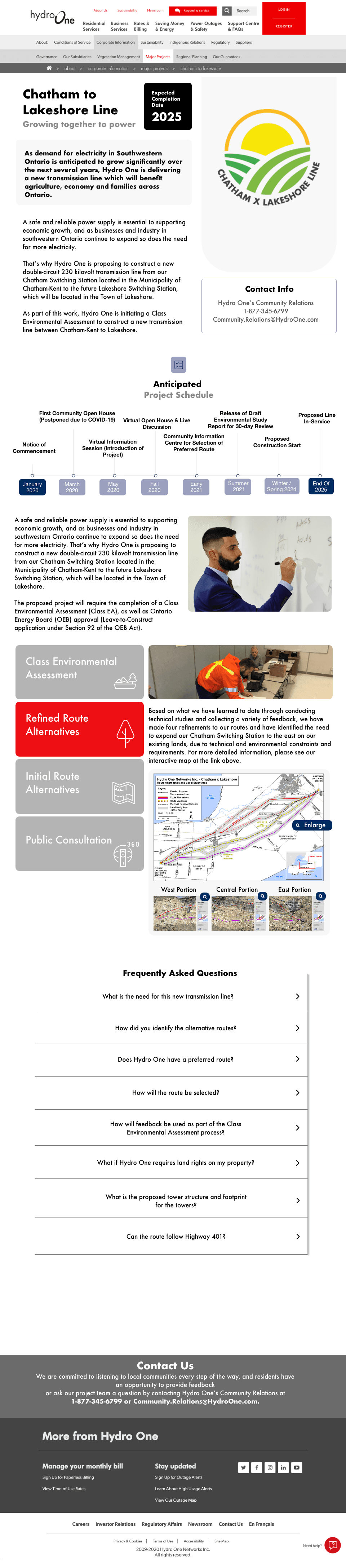
Chatham to Lakeshore Line project page, second version.
Public · project pageTasks first, details below.
Public Hydro One mobile menu: View My Bill, Understanding My Bill, Outage Map and Report a Power Outage.
Phone · bill and outageTasks first, details below.
Public Hydro One mobile menu, alternate version.
Phone · bill and outageTasks first, details below.
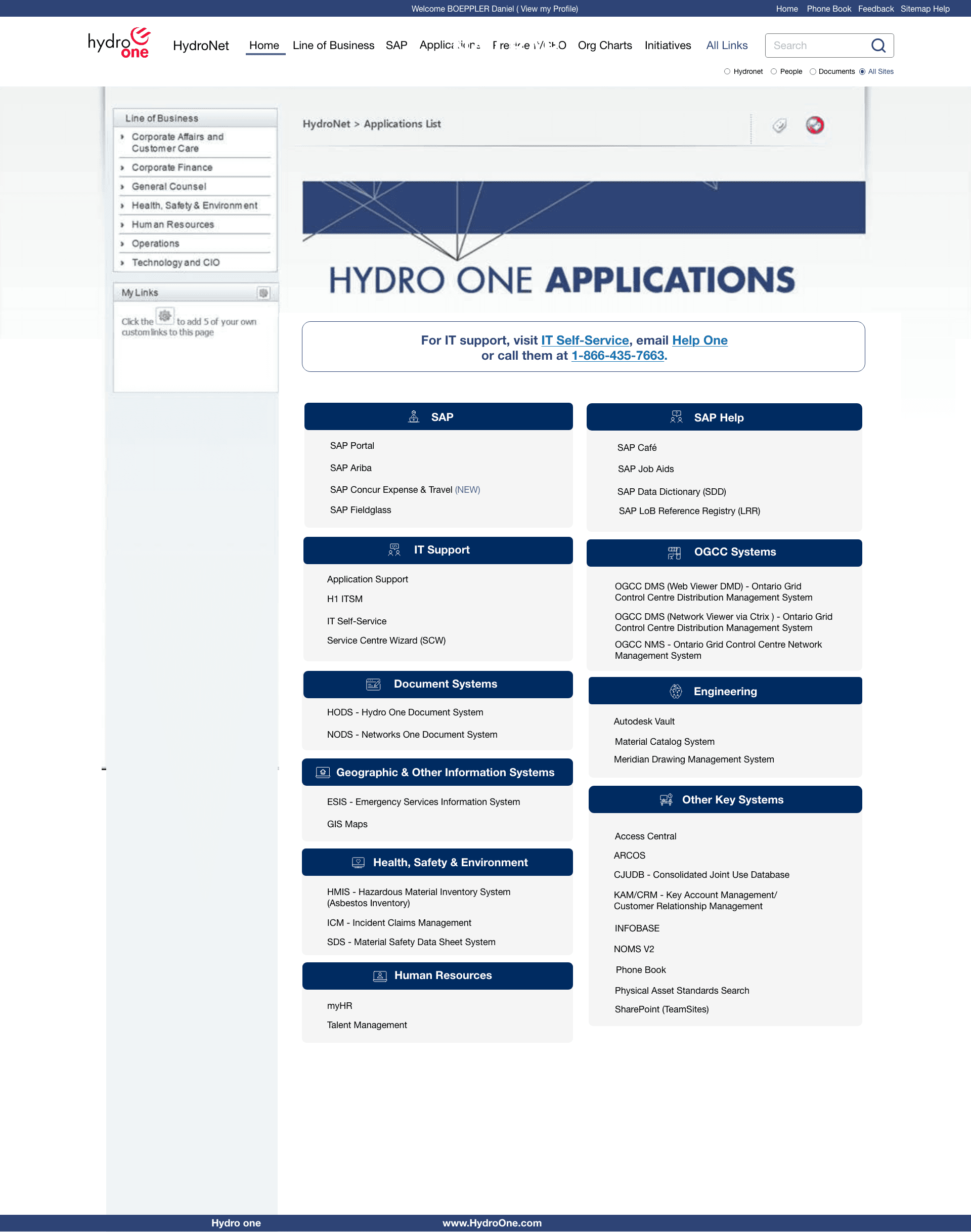
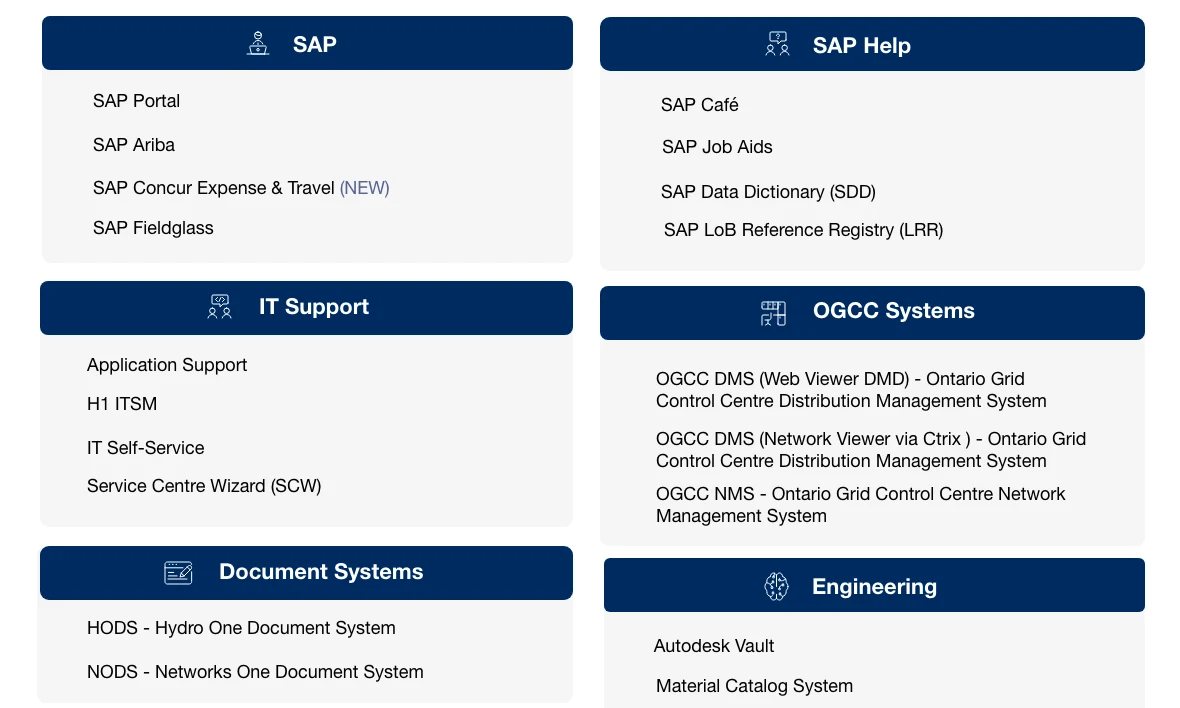
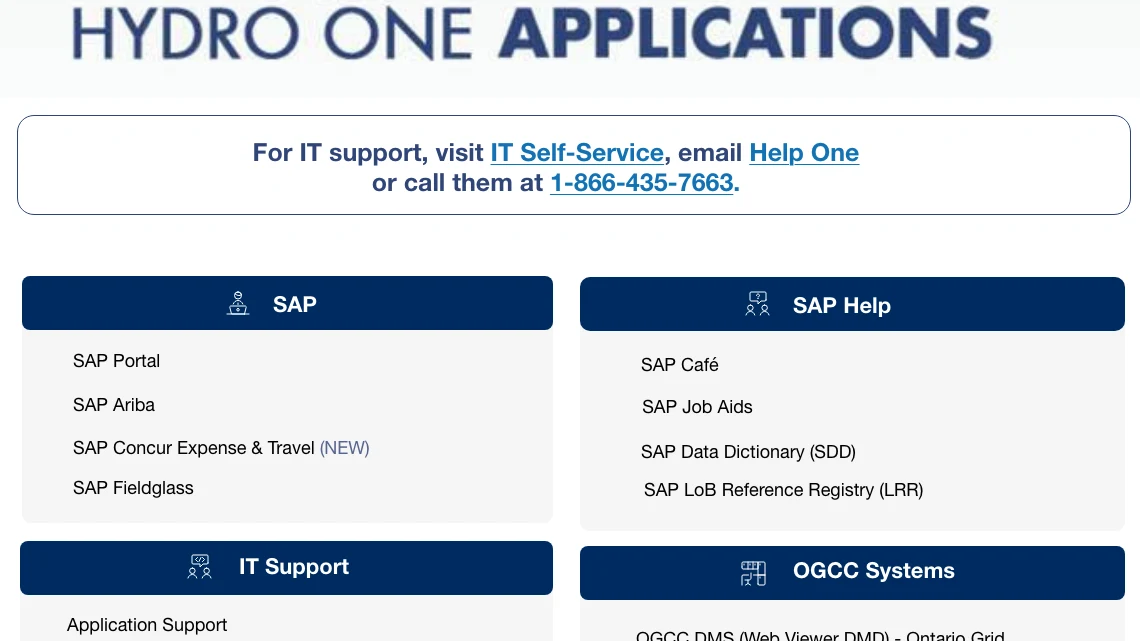
HydroNet Hydro One Applications page: every internal application grouped by system, with IT support up top.
Applications directoryDozens of applications, grouped by system.

SAP, IT Support, Document Systems and the rest each get a navy header and a plain list, with IT help pinned above them.

01

Put the tools people open every day where the eye lands first.

myHR, HODS and Storm Center sit top left on the intranet; View My Bill and Outage Map lead the public mobile menu.

02

Keep navigation close to the content it belongs to.

Team pages carry a breadcrumb and a line-of-business menu, so people know where they are and where else to go.

03

Reuse the same blocks across very different pages.

Headers, link panels and grouped lists repeat across the homepage, the applications directory and team pages.

04

Protect readability and touch targets when pages move to mobile.

The public mobile menu uses full-width rows with an icon, a label and a chevron, each easy to tap.

Outcome

An intranet that starts with the work.

HydroNet leads with daily tools, groups every application by system and gives team pages a clear place in the structure; the public pages lead with bill and outage tasks.